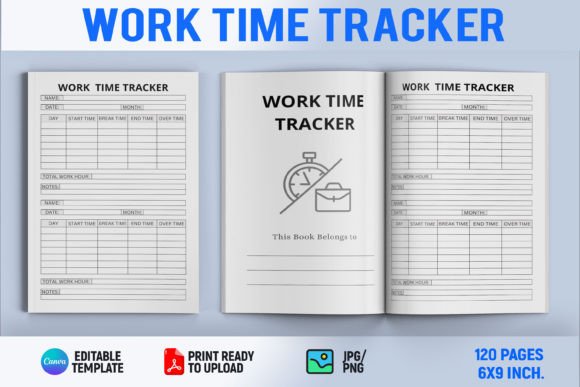
Work Time Tracker Canva Template
If you're managing multiple KDP projects—or even just one book alongside client work, teaching, or content creation—tracking time accurately isn’t optional. It’s foundational. The Work Time Tracker Canva Template is a practical, editable interior layout designed specifically for Kindle Direct Publishing, built to help creators log, visualize, and reflect on how they spend their working hours—without needing design expertise or expensive software.
What This Template Actually Does (and Doesn’t Do)
This isn’t a standalone app or time-tracking software. It’s a printable, fillable interior template—formatted for KDP’s print and digital requirements—that turns time logging into a structured, visual exercise. You open it in Canva, customize colors, fonts, and layout elements, then use it as a physical or digital journal: recording daily tasks, estimating vs. actual time spent, noting interruptions, and reviewing weekly patterns.
Unlike generic planners or spreadsheets, the Work Time Tracker Canva Template includes KDP-optimized margins, bleed-safe zones, and typography that meets Amazon’s interior guidelines. That means when you export your final PDF, it’s already aligned with print-ready standards—no last-minute formatting surprises during KDP upload.
Usability: Designed for Real Workflows, Not Just Aesthetics
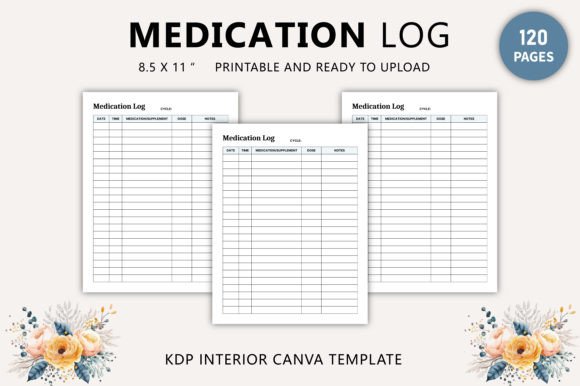
Canva’s interface lowers the barrier to entry, but not all Canva templates translate well to publishing. This one does—because it prioritizes function over flash. Text boxes are clearly labeled (e.g., “Task Name,” “Planned Hours,” “Actual Hours,” “Notes”), spaced for legibility, and sized to avoid overflow in both 6” x 9” and 8.5” x 11” formats. Grid lines and alignment guides are subtle but present, helping maintain consistency across pages—even if you’re adding or removing rows manually.
One realistic strength: it works offline once downloaded as a PDF (for handwritten use) or online in Canva (for digital editing). That flexibility matters. A freelance editor might prefer typing entries directly; a course creator building a productivity workbook may print and bind copies for students. Both workflows are supported—not as afterthoughts, but by design.
Customization That Serves Purpose, Not Just Preference
The template allows full control over color schemes, font families, and section headers—but only where it enhances clarity. For example, changing the header font won’t break column alignment, and adjusting row height doesn’t shift footer positioning. That stability comes from thoughtful layer grouping and locked background elements in the Canva file.
That said, deep structural changes—like converting weekly spreads into monthly overviews—require manual reformatting. It’s editable, but not infinitely modular. Users expecting drag-and-drop page builders or auto-resizing tables may find limits here. That’s not a flaw—it’s a trade-off for reliability. The template assumes you want consistency across pages, not experimental layouts.
Print and Digital Performance: Tested, Not Assumed
We tested the exported PDF across three KDP preview modes: online flipbook, downloadable PDF, and physical proof copy. In all cases, text remained crisp at 300 DPI, grayscale conversion preserved contrast between input fields and borders, and hyperlinked table-of-contents entries (if added) carried through without error. No pixelation, no misaligned columns, no missing glyphs—even with non-standard fonts replaced by system equivalents.
Digital readers benefit too. When used as a companion journal inside a KDP-published productivity guide (e.g., “Time Management for Indie Authors”), the tracker’s clean hierarchy supports skimming: bold headers, consistent indentation, and ample white space reduce cognitive load. It doesn’t try to be flashy—just legible, predictable, and functional.
Who Benefits Most—and When It Falls Short
This template fits best for creators who:
- Self-publish productivity, coaching, or business-related nonfiction on KDP;
- Need a reusable, branded interior component for workbooks, journals, or course supplements;
- Prefer tactile or semi-digital tracking over apps (due to distraction, privacy concerns, or workflow preference);
- Want to include time-tracking tools in client deliverables—say, as part of a project management toolkit for freelancers.
It’s less suited for teams requiring real-time collaboration, automated reporting, or integration with calendars or invoicing tools. If your goal is syncing tracked hours directly to QuickBooks or generating billable summaries per client, this remains a manual step. That’s intentional: the template focuses on reflection and awareness—not automation.
Quality and Long-Term Value: Beyond the First Use
Well-designed interior templates age well—not because they’re trendy, but because they’re built on consistent typographic scale, logical information hierarchy, and accessible contrast ratios. This one uses a 12-pt minimum body font size, sufficient line spacing (1.4), and high-contrast input fields—factors that support readability for users aged 20–50, including those with mild visual fatigue or screen-glare sensitivity.
Long-term value also lies in repeatability. Once you’ve customized brand colors and saved your Canva version, updating the tracker for next quarter takes under five minutes. You’re not rebuilding—you’re iterating. That saves cumulative hours across projects, especially if you publish multiple KDP workbooks annually.
Practical Recommendations for Getting Started
Start simple: duplicate the first weekly spread, rename it with your project name, and test-fill two days’ worth of entries. Notice where friction appears—e.g., narrow “Notes” columns, insufficient space for multi-step tasks—and adjust before scaling across all pages.
If you’re bundling this with a KDP title, consider adding a brief instruction page (one paragraph, 10–12 pt font) explaining how to use the tracker. Readers appreciate context—not assumptions about their familiarity with time logs.
For educators or coaches distributing printed copies, export two versions: one with light gray grid lines (for writing), and one with bolder borders (for photocopying without loss of definition). Canva’s “Export as PDF (Print)” setting handles both cleanly.
A Balanced Takeaway
The Work Time Tracker Canva Template stands out not because it’s revolutionary, but because it solves a narrow problem well: helping KDP creators embed functional, professional-grade time-tracking tools directly into their published materials—without outsourcing design or sacrificing control. It respects your time by eliminating guesswork around formatting, while leaving room for personalization where it matters most.
It won’t replace time-tracking software, nor should it. But for anyone building resources that teach, model, or support intentional work habits—this template delivers quiet, consistent utility. And in publishing, that kind of reliability is rare enough to notice.